Discontinuation Time to Event
This report creates a plot that displays the proportion of subjects who have not discontinued the study by days completed. Discontinuation events can be limited to those due to adverse events or deaths only (default) or those due to all reasons.
Report Results Description
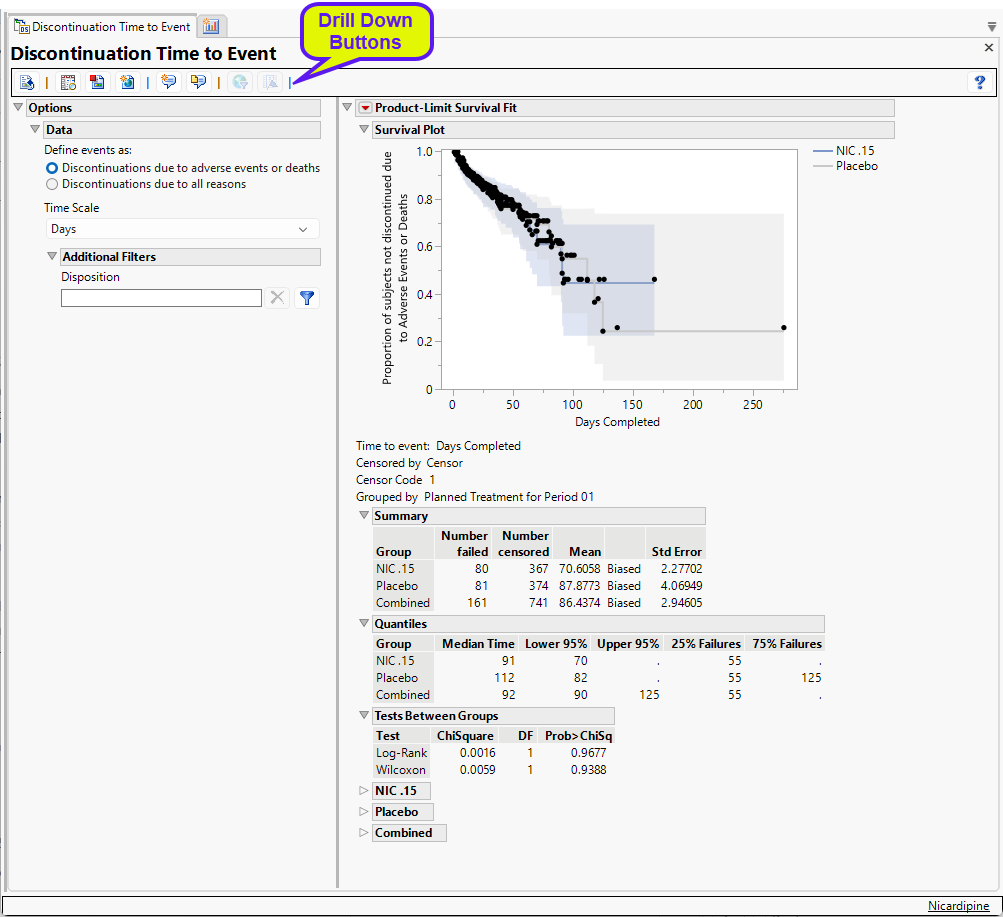
Running this report for Nicardipine using default settings generates the tabbed Results shown below.
Discontinuation Time to Event
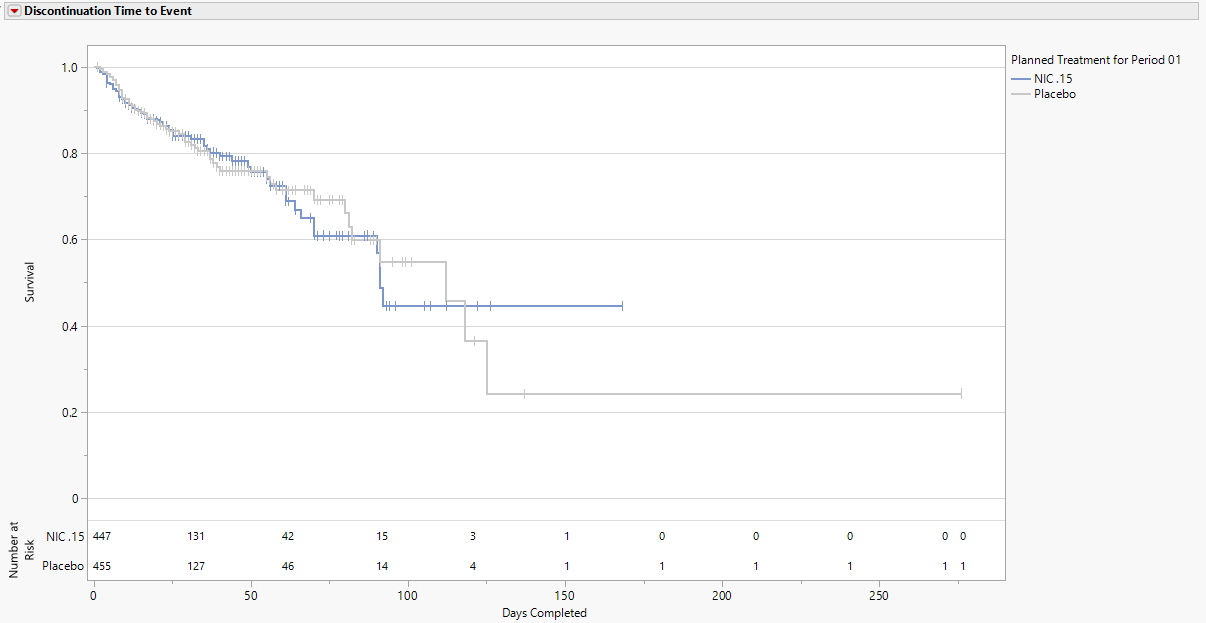
The Kaplan-Meier Survival Curve time-to-event analysis compares the time until discontinuation of individuals in each treatment arm in the study. Otherwise, subjects are censored when they complete the trial. You can define what constitutes a discontinuation using the Define events as: option in the Discontinuation Time to Event.
The Number at Risk table, displayed at the bottom of the figure when All Patients is selected using the Number at Risk display option, communicates the number of patients who have yet to have an event or be censored. When Cumulative Events is selected using the Number at Risk display option, the total number of patients with events up to and including a particular time are presented in the risk table, which has now been renamed Cumulative Events. Numbers are presented every 30 days and at the last day of follow up.
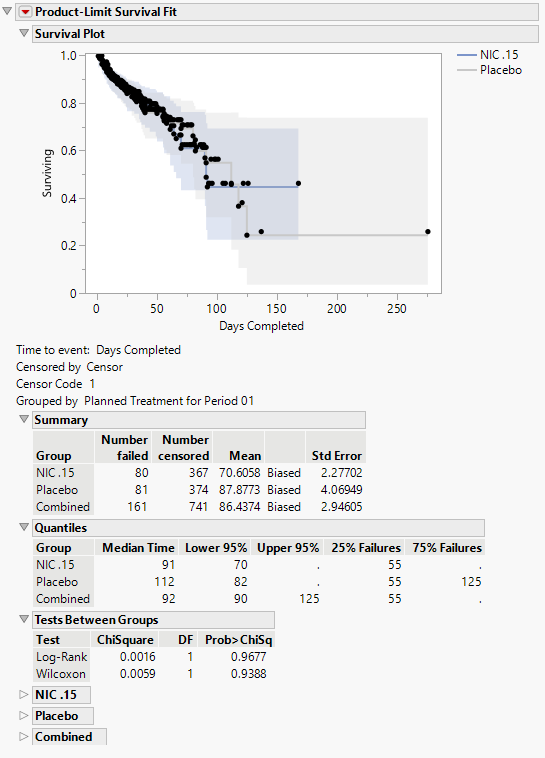
Product-Limit Survival Fit
Contains a Kaplan-Meier Survival Curve time-to-event analysis that compares the time until discontinuation of individuals in each treatment arm in the study. Otherwise, subjects are censored when they complete the trial. You can define what constitutes a discontinuation using the Define events as: option in the Discontinuation Time to Event.
Options
Data
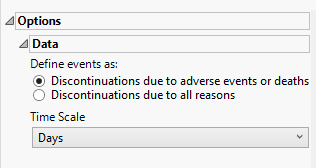
Define events as:
A patient may drop out of a study, or discontinue, because of a variety of reasons. It is important to consider reasons for patient's discontinuation in a study while assessing the outcome of any study. Discontinuations directly resulting from adverse events or death arising from study protocols must absolutely be considered. Others, however, are not relevant to the outcome. For example, relocation of a patient to a different city could cause the patient to discontinue, but would not be significant and can safely be excluded from the analysis. You can use the Define events as: option to differentiate between these events.
Time Scale
By default, time is measured in days. However, you can change the Time Scale to measure time in hours, weeks, months, or years. This option is useful for assessing report graphics for exceptionally long studies.
Number at Risk Interval (days)
Enter the number of days comprising the block of time between study days where the number of subjects remaining in the study are reported.
Color Risk Table by Treatment
Use this option to color the numbers in the Risk Table by treatment.
Additional Filters - Disposition
This filter lets you restrict your analysis to only those subjects that meet specific disposition criteria. If the filter is empty, the report subsets to only records where "DSCAT = “Disposition Event”. If the filter is populated, then it will subset to records that meet the filter instead.
The filter uses a JMP WHERE clause to Select Rows that meet the specified criteria. Refer to Filter by Value Using a Where Statement for examples using JMP WHERE clause expressions.
Note: To filter subjects with a specific event or finding, one could also use the Subpopulation Builder on any domain of interest.
Display
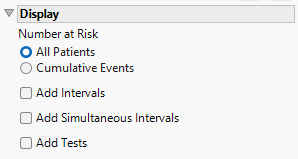
Number at Risk
Use this option to specify whether to calculate risk for all subjects or just those experiencing cumulative events. All Patients, which is set by default, displays the number of patients currently at risk in the analysis (i.e., those who have yet to have an event or be censored). Cumulative Events displays the number of patients who have experienced an event by the given time point.
Add Intervals
Check this option to show the 95% pointwise confidence bands for the Kaplan-Meier survival functions in the Survival Plot and the Failure Plot. Meeker and Escobar (1998, ch. 3) discuss pointwise and simultaneous confidence intervals and the motivation for simultaneous confidence intervals in survival analysis.
Add Simultaneous Intervals
Check this option to show the 95% simultaneous confidence bands for the Kaplan-Meier survival functions in the Survival Plot and the Failure Plot. Meeker and Escobar (1998, ch. 3) discuss pointwise and simultaneous confidence intervals and the motivation for simultaneous confidence intervals in survival analysis.
Add Tests
Check this option to add the Wilcoxon and Log-rank test p-values when two or more treatments are present.
General and Drill Down Buttons
Action buttons provide you with an easy way to drill down into your data. The following action buttons are generated by this report:
| • | Click  to rerun the report using default settings. to rerun the report using default settings. |
| • | Click  to view the associated data tables. Refer to Show Tables for more information. to view the associated data tables. Refer to Show Tables for more information. |
| • | Click  to generate a standardized pdf- or rtf-formatted report containing the plots and charts of selected sections. to generate a standardized pdf- or rtf-formatted report containing the plots and charts of selected sections. |
| • | Click  to generate a JMP Live report. Refer to Create Live Report for more information. to generate a JMP Live report. Refer to Create Live Report for more information. |
| • | Click  to take notes, and store them in a central location. Refer to Add Notes for more information. to take notes, and store them in a central location. Refer to Add Notes for more information. |
| • | Click  to read user-generated notes. Refer to View Notes for more information. to read user-generated notes. Refer to View Notes for more information. |
| • | Select one or more subjects, then click  to apply the Review Subject Filter and filter all reports in the review builder on the selected subjects. to apply the Review Subject Filter and filter all reports in the review builder on the selected subjects. |
| • | Select a group of subjects and click  to specify Derived Population Flags that enable you to distinguish the selected group of subjects from the general population based on their meeting specific criteria. to specify Derived Population Flags that enable you to distinguish the selected group of subjects from the general population based on their meeting specific criteria. |
Default Settings
Refer to Set Study Preferences for default Subject Level settings.
Methodology
Discontinuations are determined using the last record per subject where the disposition category is "Disposition Event." When the option for "Define events as:" is set to Discontinuations due to adverse events or deaths, disposition terms of "DEATH", "DEAD", "DIED" and "ADVERSE EVENT" are all considered discontinuations. When the option is set to Discontinuations due to all reasons, then any disposition event not listed as "COMPLETE" or "COMPLETED" is considered a discontinuation. If a subject does not experience a discontinuation event, they are censored at the date of the last disposition event. If a disposition event does not exist for a subject, then the censor date is set to the last treatment date (TRTSDT) or the reference end date (RFENDTC). Any subjects with a missing disposition date and missing censor date are removed from the analysis and a note will appear at the top of the report to indicate subjects have been removed.
Note: xxOCCUR records are excluded from this analysis.