Birthdays and Initials
This report attempts to identify subjects, by their birthdays or initials, who register at multiple study sites.
Report Results Description
Running this report with the Nicardipine sample setting and default options generates the output shown below.
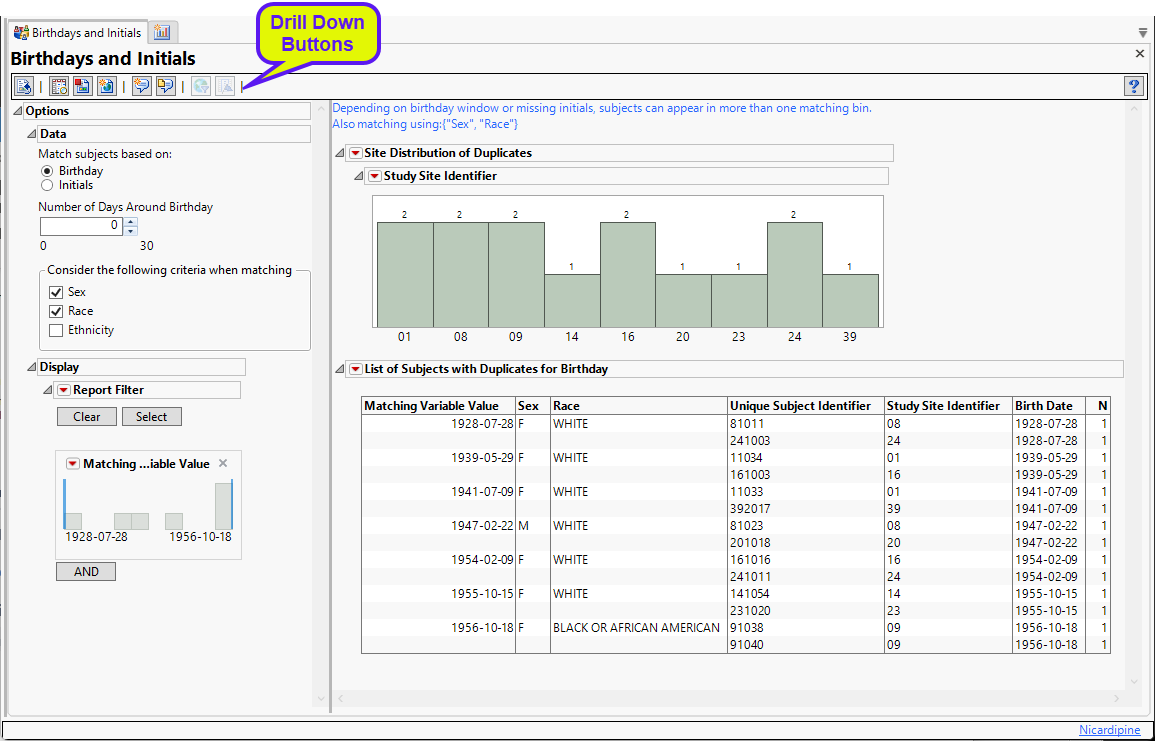
This section contains the following:
| • | One Histogram of Duplicates by Study Site. |
This Distribution shows the numbers of pairs of subjects sharing the same birth date/initials by the sites at which they occur.
| • | One List of Subjects with Duplicates. |
This table lists any birth dates where two or more subjects match. Supporting information (if available) to determine whether multiple Unique Subject Identifiers refer to the same person include Study Site Identifier, Date of Birth, Sex, Race, and Ethnicity.
If the report is run matching on initials, the Matching Variable Value reflects Initials. Here, the section is named List of Subjects with Duplicates for Initials.
Note: Matching by initials will only happen if the Subject Characteristics (SC/ADSC) domain contains the initials of the subjects. Values in the SCTESTCD/PARAMCD column must be either “SUBJINIT” or “INITIALS”.
Options
Data
Use these options to specify matching criteria for identifying duplicate subjects based on demographic information.
Match subjects based on:
By default, this report attempts to Match subjects based on: their date of birth. You can optionally match subjects by their initials instead.
Number of Days Around Birthday
Increasing the Number of Days around Birthday that are included in the search can increase the chances of finding matches.
Consider the following criteria when matching
Adding or subtracting Sex, Race, and/or Ethnicity to your search criteria increases or decreases, respectively, the specificity of your search.
Display
Report Filter
This enables you to subset subjects based on matching birthdays/initials. Refer to Data Filter for more information.
General and Drill Down Buttons
Action buttons provide you with an easy way to drill down into your data. The following action buttons are generated by this report:
| • | Click  to rerun the report using default settings. to rerun the report using default settings. |
| • | Click  to view the associated data tables. Refer to Show Tables for more information. to view the associated data tables. Refer to Show Tables for more information. |
| • | Click  to generate a standardized PDF- or RTF-formatted report containing the plots and charts of selected sections. to generate a standardized PDF- or RTF-formatted report containing the plots and charts of selected sections. |
| • | Click  to generate a JMP Live report. Refer to Create Live Report for more information. to generate a JMP Live report. Refer to Create Live Report for more information. |
| • | Click  to take notes, and store them in a central location. Refer to Add Notes for more information. to take notes, and store them in a central location. Refer to Add Notes for more information. |
| • | Click  to read user-generated notes. Refer to View Notes for more information. to read user-generated notes. Refer to View Notes for more information. |
| • | Select one or more subjects, then click  to apply the Review Subject Filter and filter all reports in the review builder on the selected subjects. to apply the Review Subject Filter and filter all reports in the review builder on the selected subjects. |
| • | Select a group of subjects and click  to specify Derived Population Flags that enable you to distinguish the selected group of subjects from the general population. to specify Derived Population Flags that enable you to distinguish the selected group of subjects from the general population. |
Default Settings
Refer to Set Study Preferences for default Subject Level settings.
Methodology
No testing is performed. Subjects are matched according to selected demographic characteristics.